
SAU

Directory & Member Profile Guide

Everything you need to access the Mulerider Alumni Online Directory, set up your profile, and connect with fellow alumni.

Let’s Get Started!

Watch the video below or follow the step-by-step guide to get connected.

How It Works

4 Steps to Access the Directory

1

Access Your Alumni Member ID

Mulerider Alumni App

Download the Mulerider Alumni App, log in, and click the “Member Card” tile to access your member ID.

Online Form

Visit saumalumni.com/memberID and submit your information to retrieve your member ID via email.

2

Register Your Account

  1. Visit saumalumni.com/register and type your legal first and last name.
  2. Select your name from the results and click next.
  3. Verify your account by entering your Member ID.
  4. Create your account password, agree to the terms, and enter the email address you’d like associated with your SAU account. Click save and continue.
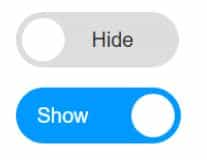
  5. To show your email on the directory, click the HIDE field to turn on the SHOW capability.
  6. Click save and continue — you’ll be redirected to the homepage.

Toggle your email visibility: During registration, click the HIDE toggle next to your email address to switch it to SHOW — this allows classmates to see your email in the directory.

3

Customize Your Profile

Mulerider Alumni App

Click the “My Profile” tab and log in with the email and password you created during registration.

Online

After registering, you’re automatically logged in. Access “My Profile” at the top right of the page.

Upload your photo and click the dark gray columns to open and close each category. Click EDIT to update your information. We recommend sharing your phone number, email address, and education information so classmates can contact you. Click Community Profile at the top to preview what will appear in the directory.

4

View the Online Directory

Mulerider Alumni App

Click the “Directory” tab and log in with your email and password.

Online

Click Connect & Update in the navigation and select Online Directory, or visit saumalumni.com/directory.

Finding Classmates

Searching the Directory

The directory homepage lets you search for classmates by name or class year. Here are a few tips to get the most out of it:

Basic Search

Enter a name or class year to begin. Leave all fields blank and click Search to browse all records A–Z.

Modify or Start Over

Use Modify Search to refine your results, or New Search at the top of the page to start fresh.

Advanced Search

Use the Advanced Search option at the bottom of the page to filter by degree or job title.

Planning a Reunion?

If you need an invitation list for an event or reunion, contact us and we’d be happy to help.

Still Have Questions?

We’re here to help — reach out to our team and we’ll get you sorted.

Let's Get Started!

A step-by-step guide to accessing the Mulerider Alumni Online Directory and Member Profile.

Step 1: Access Your Alumni Member ID

Mulerider Alumni App: Download the Mulerider Alumni App on your mobile device. Log in and click the “Member Card” tile to access your member ID.

Online Form: Visit www.saumalumni.com/memberID and submit your information to retrieve your member ID via email.

Step 2: Register Your Account

  1. Visit www.saumalumni.com/register and type your legal first and last name.
  2. Select your name from the results and click next.
  3. Verify your account by entering your Member ID.
  4. Create your account password, agree to our terms, and type in the email address you would like associated with your SAU account. Click save and continue.
  5. To show your email address on the directory, click the HIDE field to turn on the SHOW capability.
  6. Click save and continue and you will be redirected to the homepage

Step 3: Customize Your Profile

Mulerider Alumni App: Click the “My Profile” tab and log in with the email and password you created during registration.

Online: After registering, you will be automatically logged in and can access the “My Profile” button at the top right of the webpage.

Upload your photo and click the dark gray columns to open and close each category. Click the EDIT button to update your information.
We recommend sharing your phone number, email address, and education information in order for classmates to contact you.

Click Community Profile at the top of the page to see the information that will be shown on the directory. Click each category to expand.

Step 4: View the Online Directory

Mulerider Alumni App: Click the “Directory” tab and log in with the email and password you created during registration.

Online: Click the Connect & Update tab on the website and select Online Directory. From your mobile device, click the “Menu” option at the top of the screen to access the tabs. You can also visit
www.saumalumni.com/directory.

Search:

The homepage of the directory allows you to search for classmates. You can input basic information, such as name or class year, to begin your search.

To view all records from A-Z, or not input any criteria and simply click “Search” at the bottom of the page.

Change your criteria by clicking the “Modify Search” or “New Search” option at the top of the page.

Utilize the Advanced Search option, located at the bottom of the page next to the “Search” button, to search for more specific information (such as degree or job title).

If you are planning a reunion or event with SAU classmates and need an invitation list, we would love to help. Contact us for more information.

Questions?

Email: saualumni@saumag.edu

Call: (870) 235-4079